

Every great event deserves a great ending, and a few great moments along the way. Today we’re launching Recap Videos in Thrillify: automatically generated recap videos that bring your event’s best moments to life, plus a brand-new custom Recap Studio so you can build your own.
Recaps That Create Themselves
Running an event is busy. The last thing you want to do at the end of a long day is spend an hour editing video.
Thrillify now automatically generates two types of recap videos for every event, no editing required:
- Daily Recap: Generated at the end of each event day. Thrillify looks at every challenge submission from that day and surfaces the ones with the highest reactions and comments. The crowd picks the highlights; Thrillify makes the video.
- Overall Recap: Generated when the event ends. Same idea, but across the entire event. Your best moments from day one through the finale, all in one video.
Both videos are rendered in the background and appear in the new Recap Videos tab in Backstage as soon as they’re ready. Download and share with zero extra effort.
Reactions and Comments Drive the Story
Auto-generated recaps aren’t random. They’re driven by genuine participant engagement. Submissions with the most reactions and comments rise to the top. This means:
- The moments players actually cared about get featured
- Players are more motivated to react and comment because it influences the recap
- Your recap feels authentic, not curated by an organizer picking favorites
It’s a natural incentive loop: more engagement makes the event more fun, and the most engaged moments become the story.
Build Your Own Recap with the Studio
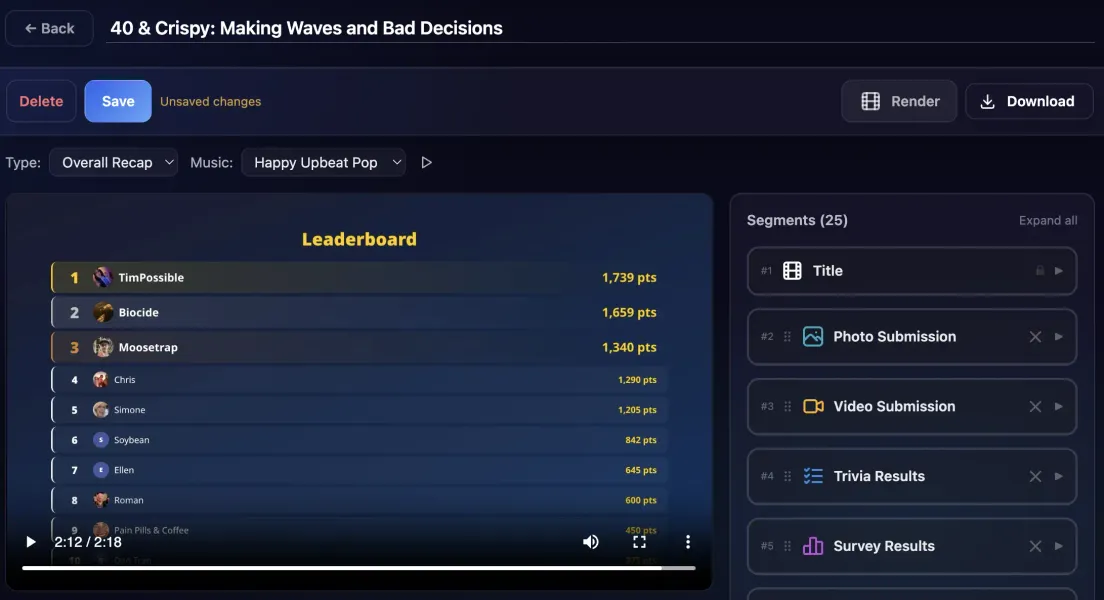
Want full control? The new Backstage Recap Studio lets you build custom recap videos from scratch.
Open any event, head to the Recap Videos tab, and click New Recap. From there you can:
- Name your recap and choose a type: Overall or Daily.
- Build a storyboard by adding segments: photo and video submissions, trivia results, survey results, leaderboard standings, challenge participation stats, and custom title cards.
- Pick any submission from your event’s feed using the built-in search and filter. You’re not limited to top-engagement picks; highlight whatever story you want to tell.
- Choose a music track and preview it before committing. A good soundtrack makes a huge difference.
- Render with one click. The video is generated in the background; when it’s done, you’ll see a preview right in the studio.
- Download the finished
.mp4and share it anywhere: social media, post-event emails, your event page, or a big screen at your closing ceremony.
You can create as many custom recaps as you want per event. Build a daily recap by hand, create a sponsor-specific recap video, or put together a separate video just for the leaderboard reveals.
Share Recaps Directly with Your Participants
Downloading and posting a video is great, but with Thrillify you can push recap videos directly to your participants inside the app, no link required.
Every recap has a Shared toggle. Flip it on and the video instantly appears in the Event tab of the Thrillify mobile app for everyone joined to your event. They open the app and there it is: your recap video, right where they’ve been following the action all event long.
You can toggle any recap as shared, whether it was auto-generated or something you built by hand in the Studio.
Set It and Forget It with Auto-share
If you want recap videos to reach participants automatically (without remembering to toggle anything), two new event settings have you covered:
- Auto-generate recap videos: Thrillify generates daily and overall recaps automatically. On by default.
- Auto-share recaps with participants: Auto-generated recaps are pushed to the Event tab in the app as soon as they’re ready. Turn this on and your participants will see daily recap videos each morning and a final overall recap when the event wraps, all without you lifting a finger.
Both settings live in Event Settings → Recap Videos in Backstage.
Perfect For
- Corporate team events: Send the overall recap to leadership as a summary of the day’s activities and team engagement.
- Conferences and festivals: Post daily recaps to social media to build excitement and encourage more participation the next day.
- Scavenger hunts: Build a closing recap video to show off the most creative and funny submissions from the hunt.
- Weddings and parties: Create a keepsake video of the best moments from the challenge feed that guests can revisit long after the event.
Get Started
Recap Videos are available now for all Thrillify events. Open any active or past event in Thrillify Backstage, head to the Recap Videos tab, and start building.
Want to learn more? Check out the full support article for a step-by-step walkthrough of the Recap Studio. Or check out our quick walkthrough to see an example recap video!