
Create a schedule and timed Challenges
Thrillify lets you optionally build out a detailed schedule for your event. The start and end times for the Event will always appear on your schedule automatically. But you can also add timed challenges and activity blocks to it if you would like!
Timed challenges are only available during specific windows and must be completed within a limited timeframe. Time blocks are helpful for highlighting key moments in your event — like lunch, meetings, or special activities. Players will receive notification reminders for all timeline entries to help keep them on track and in the action.
Creating a schedule isn’t required, but it’s a great way to add structure and excitement to your event. It helps keep things organized and can make the overall experience more engaging for participants.
Here’s how to create and manage a schedule for your event.
1. Open the Schedule Tab
From your event dashboard, ensure you are in the Edit view and click on Schedule in the left-hand sidebar to begin managing your event timeline.
2. View and Manage Your Timeline
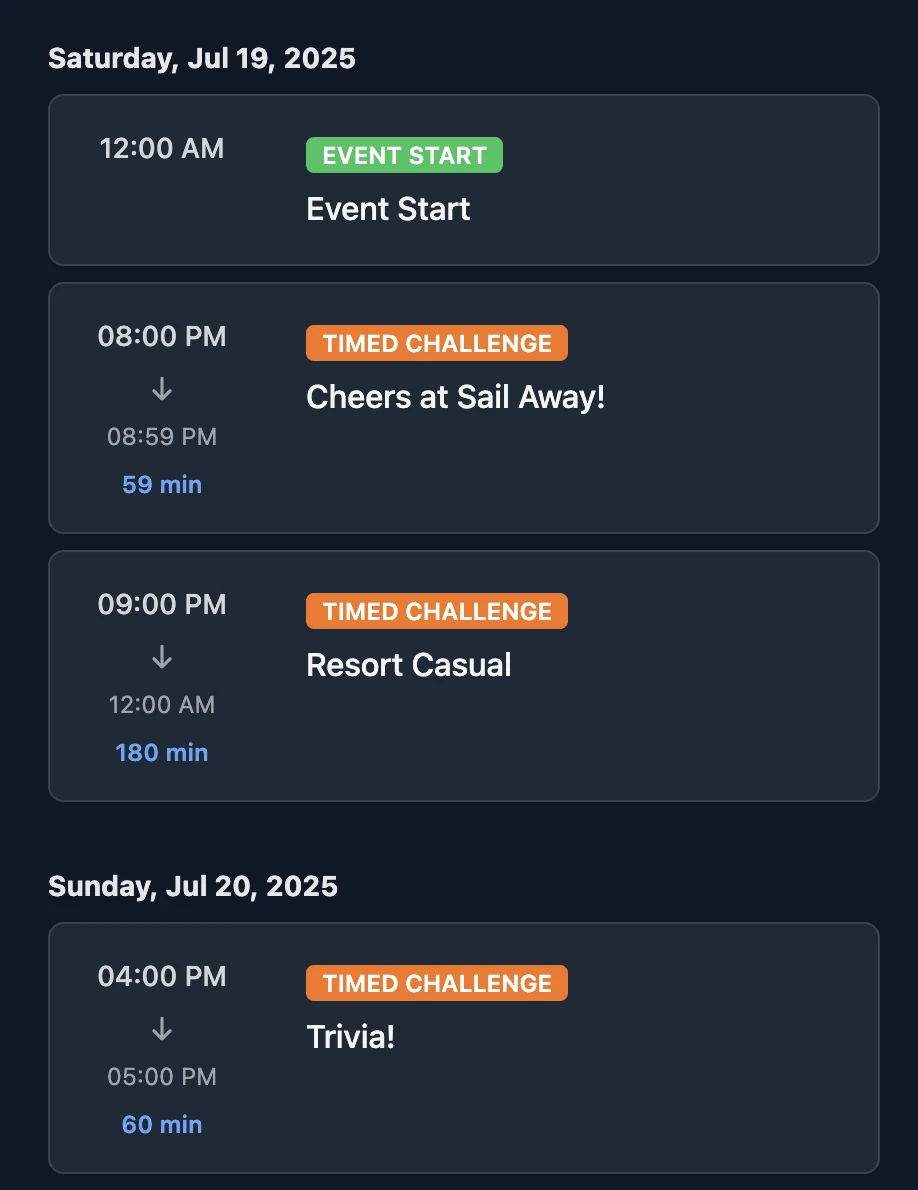
Once added, your schedule will visually display each item in chronological order:
- Each item shows the start time, type label, title, and duration.
- Challenge blocks display in orange, time blocks in blue, and start/end markers in green/red.
- Click on an item to edit or delete it.
3. Add a New Timeline Entry
Click the + Add Entry button at the bottom of the schedule or the Plus button on the bottom right to begin creating a new entry.
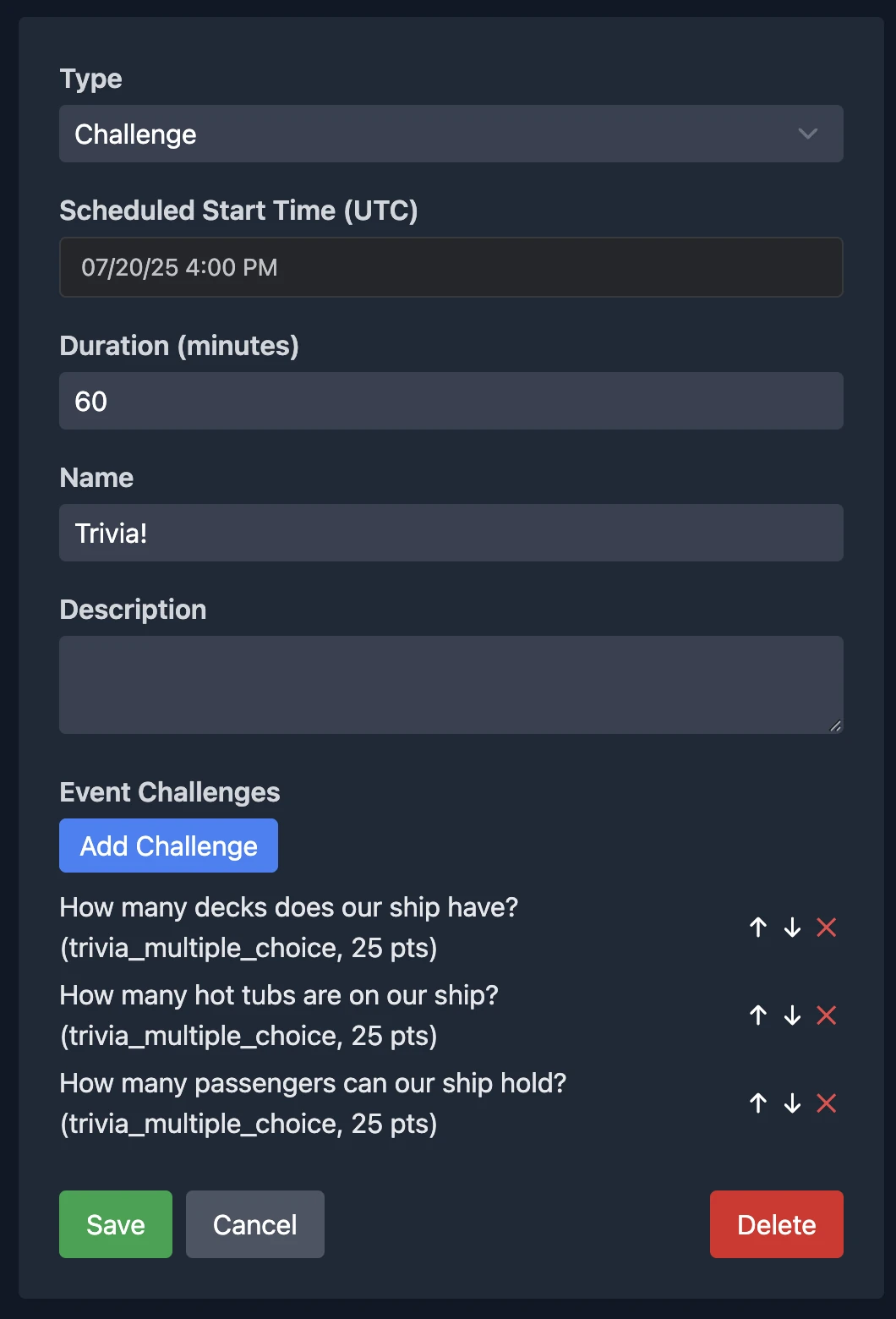
You’ll be prompted to fill out the following details:
Schedule Item Details
- Type: Choose between
ChallengeorTime Block. - Scheduled Start Time: Set the exact time you want this item to begin. This is based on your Event’s configured timezone. There can only be one timeline entry during any given time period.
- Duration (minutes): Define how long the challenge or block should run.
- Name: Enter a clear title for the item (e.g., “Group Picture Challenge”).
- Description: Optionally describe the item. This helps participants know what to expect.
- Event Challenges (for scheduled challenges only): Select one or more of your previously created challenges to include in this scheduled block. You can rearrange or remove them as needed. Any challenges added to the schedule will only be available to players during their scheduled time. They’ll no longer appear in the general challenge list outside of that window. This helps keep things focused and time-bound during your event.
TIP
Players must complete the challenges in the order you set — they won’t see the next challenge until they’ve finished the current one. Be intentional with the sequence to create the right flow and difficulty curve for your event!
Click Save to add the item to your event schedule.
Tips
- Use Time Blocks to schedule breaks, meals, or meetups that aren’t tied to scoring. Players will receive notifications about all timeline entries.
- Scheduled Challenges allow you to control when players can access and complete specific tasks.
That’s it! Your event is now structured and ready to go. Now you’re ready to invite users.