
Create Challenges
Challenges are the core tasks players complete to earn points. They come in a variety of types including photo, video, gps/location, text, and trivia.
Mix and match to keep things fun and engaging!
1. Go to the Event Edit mode
Click on your event in the Events table (if you haven’t already). Check that you’re in the Edit mode — it should say Edit at the top of the page. If you’re not in Edit mode, click the Switch to Edit button to switch to it.

2. Navigate to the Challenges tab
On the left hand side of the page, click the “Challenges” tab.
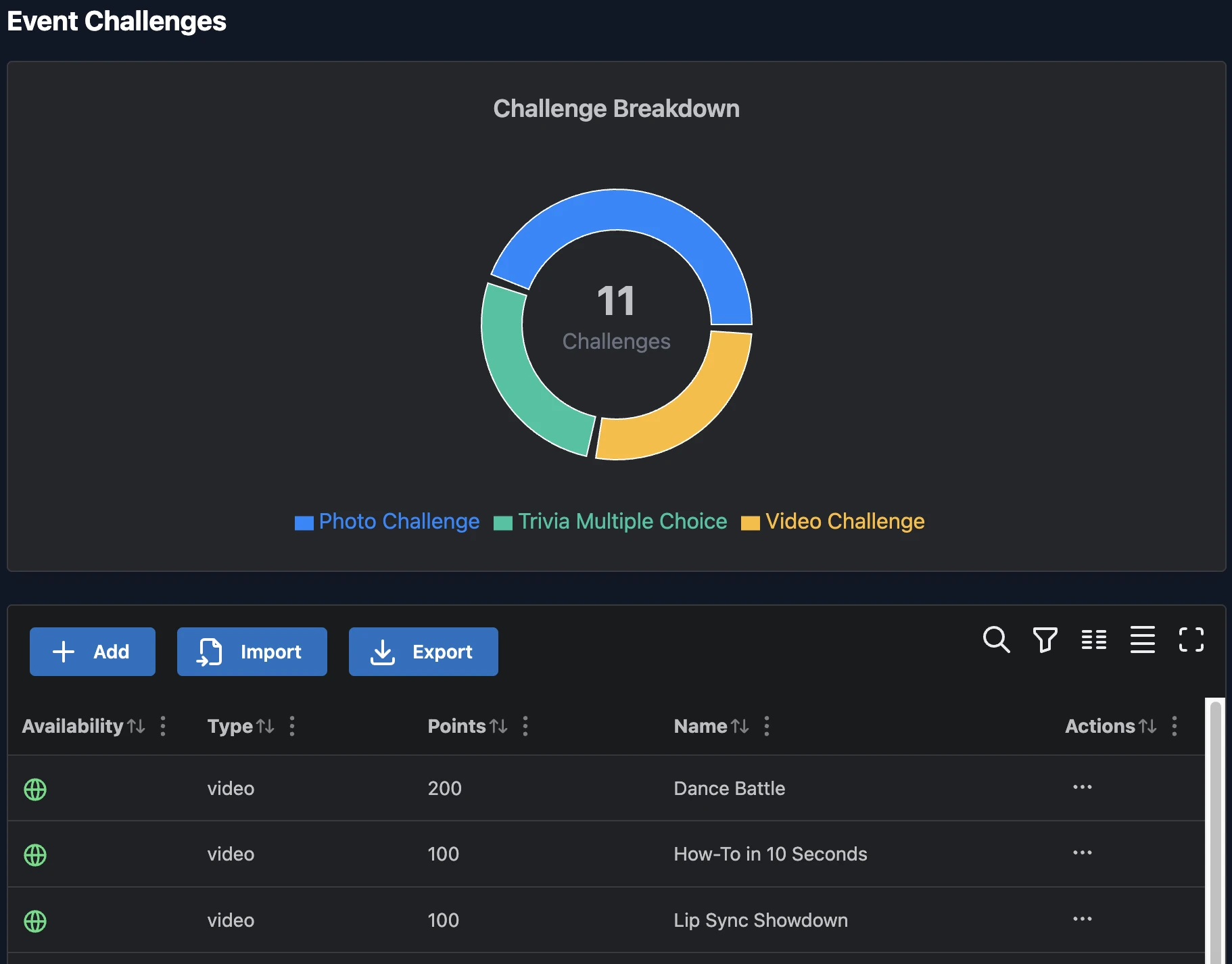
3. Click the Add button
Click the Add button in the challenges table to navigate to the challenge creation form.
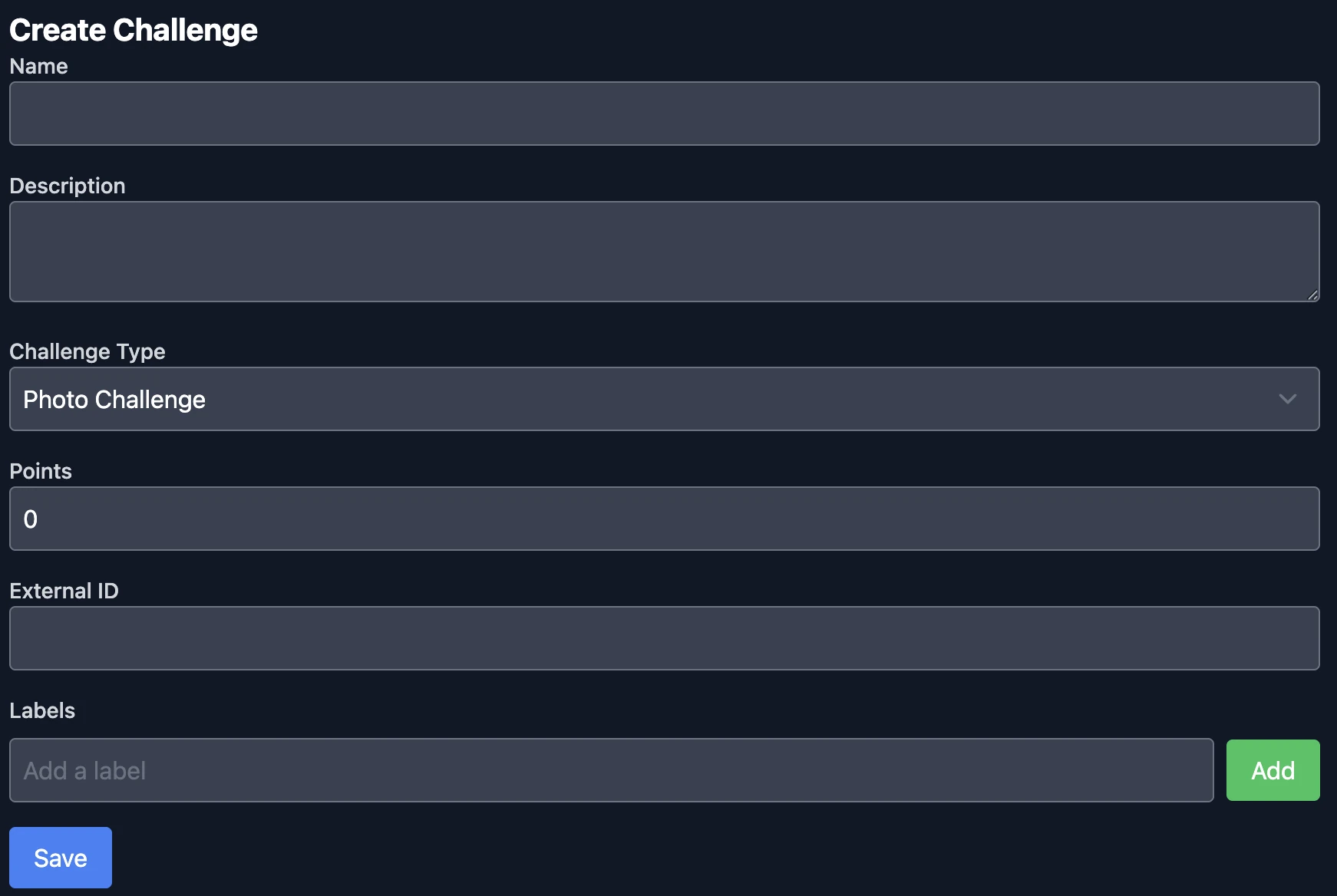
4. Enter a Name
In the Name field, type a clear and engaging title for your challenge.
This is what participants will see in the app, so make it descriptive and fun!
5. Add a Description
Use the Description field to explain what players need to do to complete the challenge.
Include any important rules, hints, or tips.
6. Select a Challenge Type
Choose one of the available challenge types from the dropdown:
- Photo Challenge – Players must submit a picture as proof.
- Video Challenge – Requires a short 30 second or less video submission.
- Trivia Challenge – Presents a multiple-choice question.
7. Set the Point Value
In the Points field, assign how many points the challenge is worth.
Harder challenges should be worth more points!
8. (Optional) Add an External ID
Use the External ID field if you’re linking this challenge to another system or reference.
You can leave this blank if not needed. No two challenges can have the same External ID.
9. (Optional) Add Labels
In the Labels field, you can tag the challenge with keywords to help you organize or filter them later.
Click Add after typing each label.
10. Click Save
Once all fields are filled out, click the Save button to create your challenge.
It will now be available in your event’s challenge list.
You’ve created your first challenge! Now you’re ready to optionally create a schedule.