
Inviting users and managing teams
1. Optionally create teams
If you have chosen to allow players to team up, you have the option of creating teams ahead of time. In the Event Edit view, click the Teams tab.
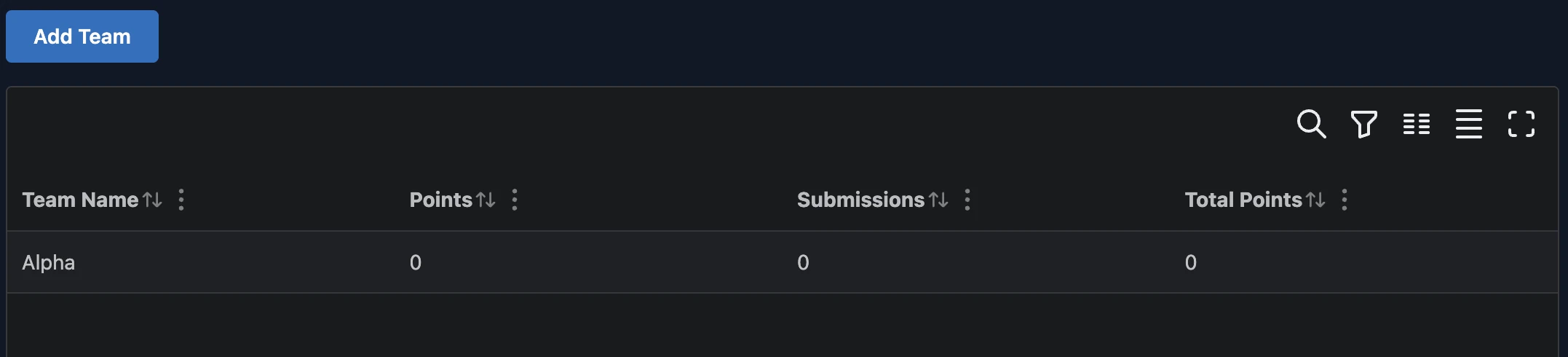
Click the Add Team button.
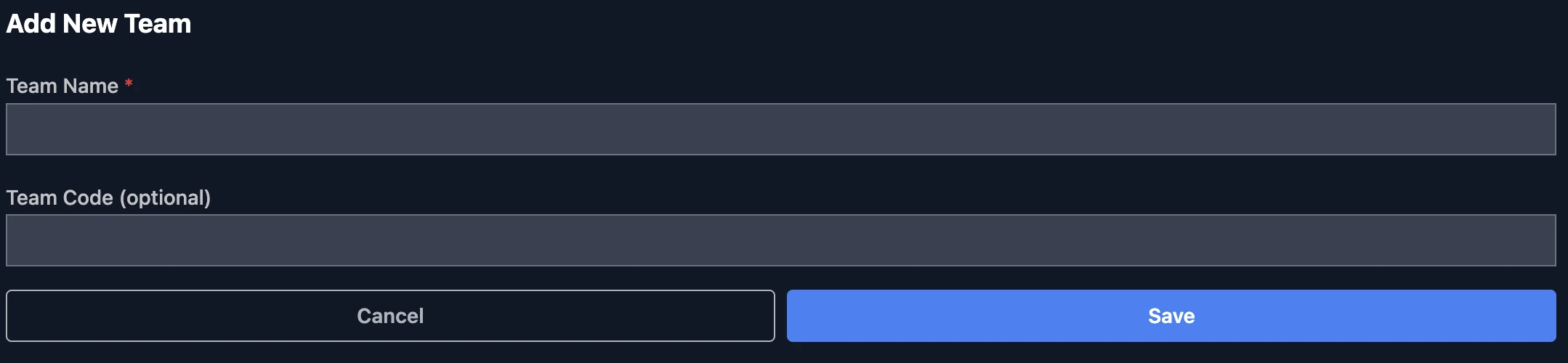
Give the team a name. Optionally set a Team Code, which is like a password that players will need in order to join the team.
INFO
If you’ve disabled teams or have chosen to allow players to create their own teams, you can skip this step.
2. Obtain the Event join code
The event join code is generated automatically and can be found in the Events table. Need a fresh code? Just click the New Join Code button — the previous one will be deactivated. If you Upgrade your Event or subscribe to a Business plan, you’ll also unlock the ability to customize the join code to anything you like!
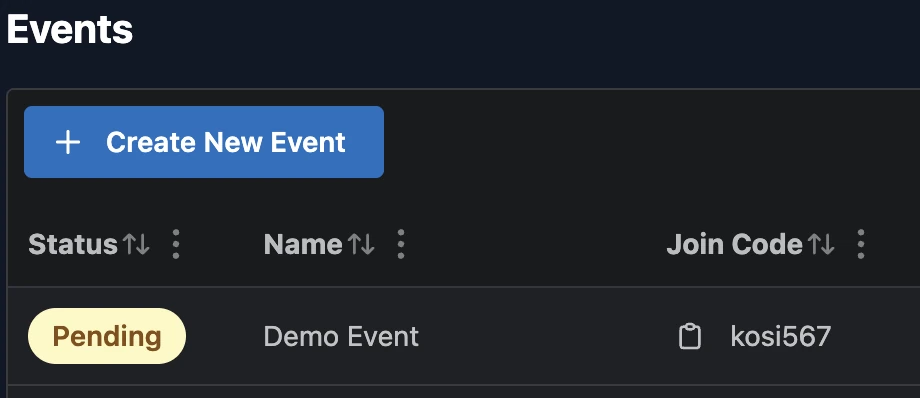
3. Give the Event join code to players
Players can download the Thrillify App from the Google Play Store or Apple App Store.
Once they’ve created an account and logged in via the App, they’ll be prompted to enter the Event join code.
TIP
As long as the event has started (based on its scheduled start time), players will be able to join immediately. If the Event hasn’t started yet, they won’t be able to find it in the App.
Nice work! Once your Event is started, you can monitor what’s going on and track user engagement.