Monitoring your Event
Once your event has started and players have joined, you can monitor its progress in real time through the Event View section of the Thrillify Backstage Dashboard. Track what players are doing, view engagement stats, and get a live pulse on your event’s activity — all in one place.
1. Go to the Event View mode
Click on your event in the Events table (if you haven’t already). Check that you’re in the View mode — it should say View at the top of the page. If you’re not in View mode, click the Switch to View button to switch to it.
2. View Challenge Details
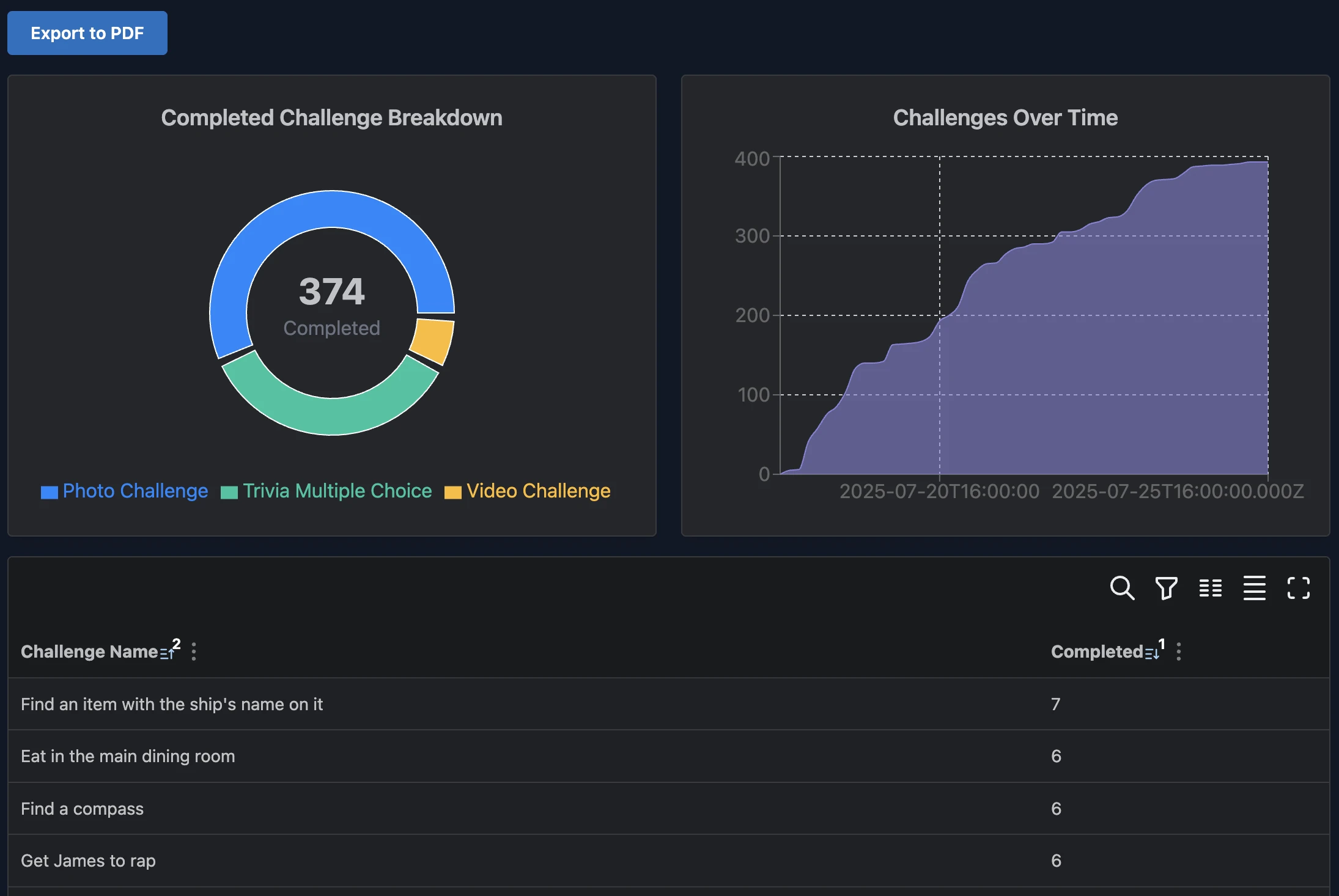
Click the Challenges tab to view various details about the Challenges in your Event. From here you can see how many challenges have been completed over time, a breakdown of completed challenges by type, and a list of all the challenges along with how many have been completed. You can drill into any individual challenge to view the Feed of challenge submissions for that challenge.
3. View the Challenge Feed
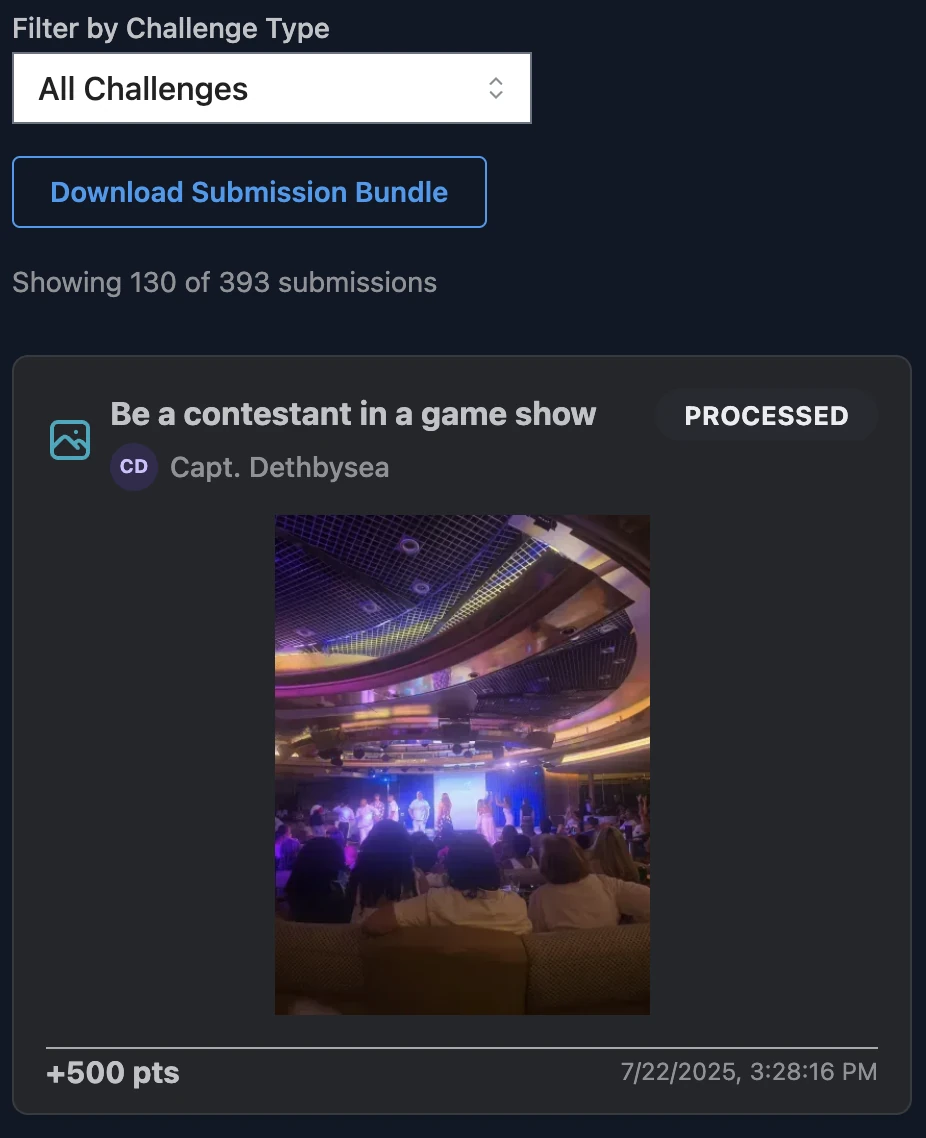
Click the Feed tab to view a live feed of all challenge submissions as they come in. From here you can see photos, videos, gps / local check-ins, text and trivia answers submitted by players in real time. You can also download a bundle of all submissions for offline viewing or archiving, or to share with others.
4. View Player Breakdown
Click the Participants tab to view a breakdown of all players in your event. View player points over time and user participation breakdowns.
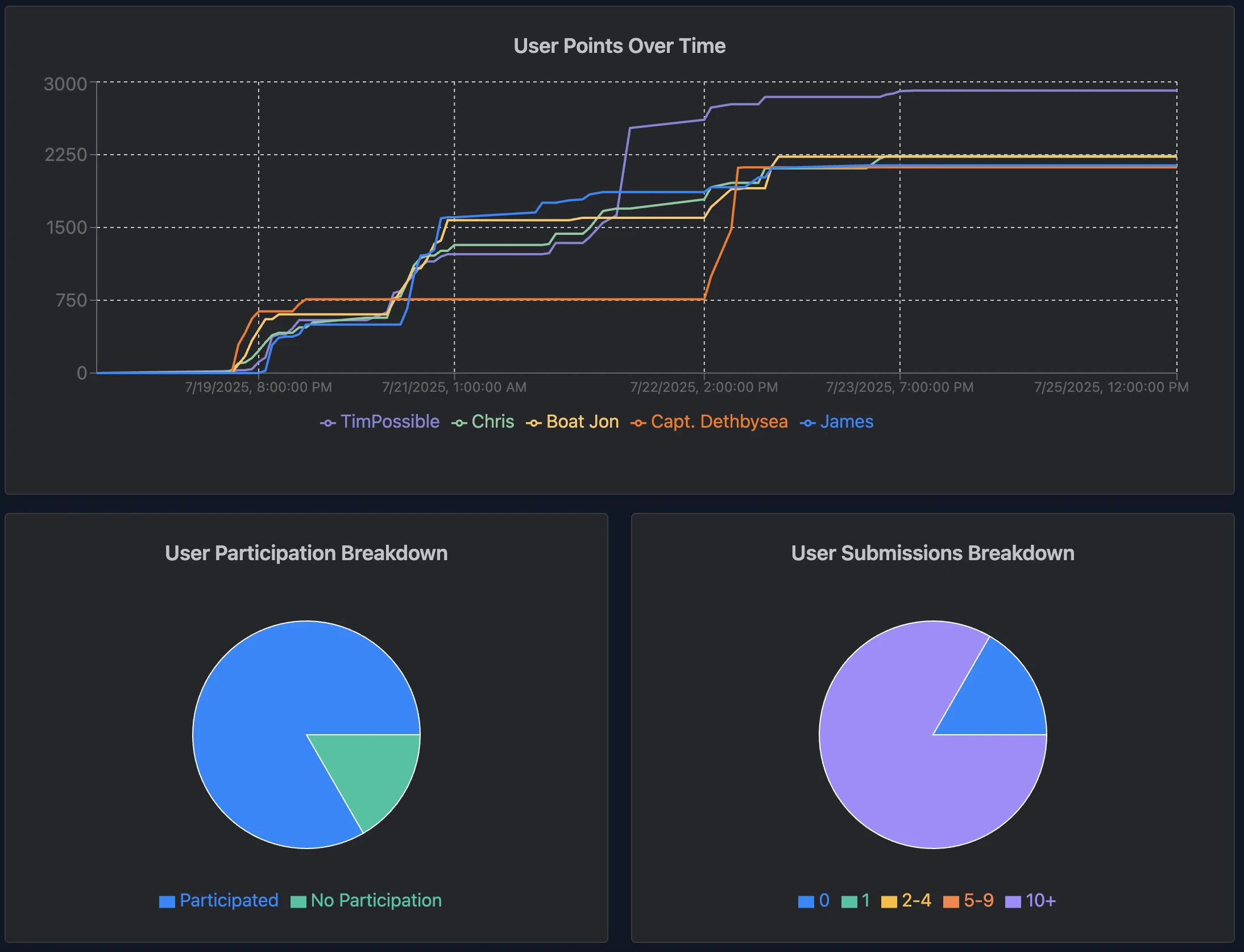
You can also see a list of all the players, how many challenges they’ve completed, and their current points. You can even drill into individual players to see their specific statistics and challenge submissions.

That’s it! Head to the Thrillify Backstage to get started for free!